MCP connector
The d8a.tech MCP connector lets AI assistants such as Claude answer questions about your analytics: traffic, conversions, funnels, user journeys and saved insights. It can also help you install or check tracking on a website. With read and write access, it can also create and edit properties, goals, insights and AI context, after you approve each change.
The MCP connector is available for d8a.tech Cloud accounts only. It is not part of self-hosted d8a.tech. To create a free account, see Getting started.
Connect
The connector works with any MCP client that supports remote servers with OAuth. You need:
| Setting | Value |
|---|---|
| Server URL | https://app.d8a.tech/mcp |
| Transport | Remote, Streamable HTTP |
| Authentication | OAuth. The client registers itself, so there is no API key, client ID or secret to enter. |
| Name | Any name. We suggest d8a. |
| Account | A d8a.tech Cloud account |
See Client examples for Claude and Claude Code.
Sign in and choose an account
When you connect, your client opens the d8a.tech sign-in page in your browser. Sign in the same way you sign in to the app. Next, a consent screen asks for an access level and which account the application may use. Choose Read only or Read and write, choose one account and click Allow access.
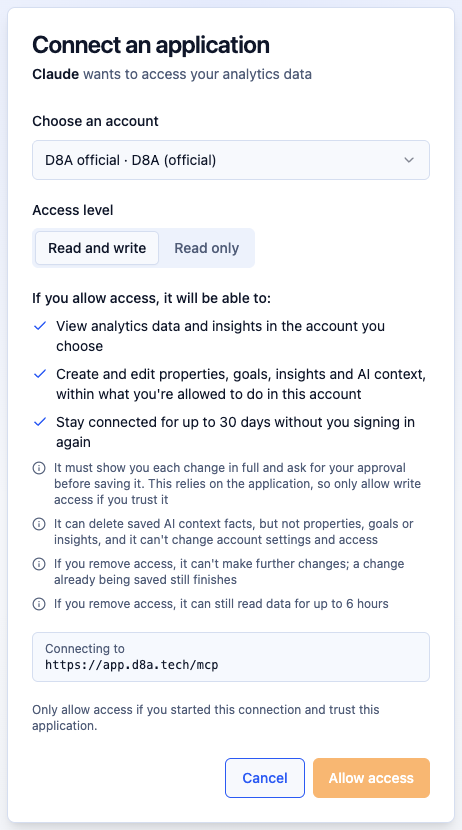
The connection lasts up to 30 days. After that, your client asks you to sign in again. To disconnect, remove the connector in your client.
Access levels
The connector sees only the account you approved, and the permissions of your role in that account still apply.
Read only. The connector can read reports, insights, goals and settings. It can't change anything.
Read and write. The connector can also:
- create properties and edit their settings, including traffic filters
- create and edit goals and insights
- edit the property's AI context: its instructions and saved facts
It can delete saved AI context facts, but not properties, goals or insights. It can't change account settings or who has access. You can choose Read and write only if your role lets you edit properties in that account.
Every change takes two steps. The client first prepares the change, which saves nothing and returns a preview with each before and after value. It then must show you the complete preview and ask for your approval before it saves the change. This step relies on the client, so allow write access only to clients you trust.
New and edited traffic filters start in Test mode, which labels matching traffic without dropping it. See Traffic filtering.
If you remove access, the client can't make further changes. A change that is already being saved still finishes. The client can still read data for up to 6 hours.
Tools
| Tool | What it does |
|---|---|
d8a_list_properties | Lists the properties (tracked websites or apps) in the connected account. |
d8a_get_property_context | Gives an overview of one property: timezone, goals, saved reports, available dimensions and metrics, and tracking setup. |
d8a_get_query_catalog | Explains what dimensions, metrics and transformations mean and how to filter them. |
d8a_run_query | Runs a report: tables, time series and goal conversions, with an optional comparison to an earlier period. |
d8a_run_funnel | Measures conversion through ordered steps, such as product view, add to cart and purchase. |
d8a_run_journeys | Shows the journeys users take before or after an event or page. |
d8a_list_insights | Lists the insights your team saved for a property. |
d8a_get_insight | Returns a saved insight so it can be run for any date range. |
d8a_get_tracking_install | Returns the tracking snippets for a property's tracking method. |
d8a_get_tracking_guide | Returns d8a.tech guides on tracking, consent, attribution, traffic filtering and the reporting tools. |
d8a_weekly_review | Returns a step-by-step weekly review: last week compared with the week before, follow-up on earlier actions and next priorities. |
d8a_tracking_audit | Returns a step-by-step audit of a site's tracking installation, for example to find missing or duplicate events. |
d8a_get_property_edit_context | Returns a property's editable settings, including traffic filters, before a change is prepared. |
d8a_get_goal | Returns a goal's complete definition. |
d8a_get_insight_definition | Returns an insight's complete saved definition. |
d8a_get_ai_context | Returns the property's AI context: instructions and saved facts. |
weekly_review and tracking_audit are also available as prompts in clients that support them.
Write tools
These tools are available with read and write access. Each prepare tool saves nothing: it returns a preview and a proposal ID, which expires after ten minutes.
| Tool | What it does |
|---|---|
d8a_prepare_property_create | Prepares a new property. |
d8a_prepare_property_settings_change | Prepares a change to a property's settings or traffic filters, including making Test mode filters live. |
d8a_prepare_goal_change | Prepares a new goal or a change to a goal. |
d8a_prepare_insight_change | Prepares a new table, funnel or journeys insight, or a change to one. |
d8a_prepare_ai_context_change | Prepares a change to the property's AI context instructions, or adds, edits or deletes a saved fact. |
d8a_execute_change | Saves a prepared change after you approve its preview. It saves the change exactly as previewed, and running it again with the same proposal ID never saves the change twice. |
Example questions
- "How did conversions by traffic source change last week compared with the week before?"
- "Show the checkout funnel for last month."
- "Which pages do users visit before they buy?"
- "Find bot traffic in the last 30 days and suggest traffic filters." With read and write access, the client can then prepare the filters in Test mode for your approval.
- "Add d8a.tech tracking to this site." See also the Setup guide for AI coding agents.
Client examples
Claude desktop app
- Open Settings → Connectors and click Add custom connector.
- Enter the name
d8aand the URLhttps://app.d8a.tech/mcp, then click Add. - Click Connect, sign in to d8a.tech, and allow access to an account.
Claude Code
Add the server:
claude mcp add --transport http d8a https://app.d8a.tech/mcp
Next, run /mcp in Claude Code, select d8a and choose Authenticate to sign in.