MCP connector
The d8a.tech MCP connector lets AI assistants such as Claude answer questions about your analytics: traffic, conversions, funnels, user journeys and saved reports. It can also help you install or check tracking on a website.
The MCP connector is available for d8a.tech Cloud accounts only. It is not part of self-hosted d8a.tech. To create a free account, see Getting started.
Connect
The connector works with any MCP client that supports remote servers with OAuth. You need:
| Setting | Value |
|---|---|
| Server URL | https://app.d8a.tech/mcp |
| Transport | Remote, Streamable HTTP |
| Authentication | OAuth. The client registers itself, so there is no API key, client ID or secret to enter. |
| Name | Any name. We suggest d8a. |
| Account | A d8a.tech Cloud account |
See Client examples for Claude and Claude Code.
Sign in and choose an account
When you connect, your client opens the d8a.tech sign-in page in your browser. Sign in the same way you sign in to the app. Next, a consent screen asks which account the application may read. Choose one account and click Allow access.
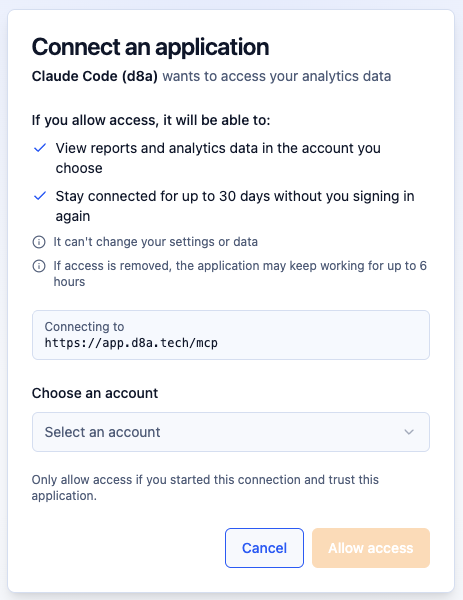
The connection lasts up to 30 days. After that, your client asks you to sign in again. To disconnect, remove the connector in your client.
Read-only access
The connector can only read data. It can't change settings, properties, goals, reports or data. It sees only the account you approved, and the permissions of your role in that account still apply.
Tools
| Tool | What it does |
|---|---|
d8a_list_properties | Lists the properties (tracked websites or apps) in the connected account. |
d8a_get_property_context | Gives an overview of one property: timezone, goals, saved reports, available dimensions and metrics, and tracking setup. |
d8a_get_query_catalog | Explains what dimensions, metrics and transformations mean and how to filter them. |
d8a_run_query | Runs a report: tables, time series and goal conversions, with an optional comparison to an earlier period. |
d8a_run_funnel | Measures conversion through ordered steps, such as product view, add to cart and purchase. |
d8a_run_paths | Shows the journeys users take before or after an event or page. |
d8a_list_saved_reports | Lists the reports your team saved for a property. |
d8a_get_saved_report | Returns a saved report so it can be run for any date range. |
d8a_get_tracking_install | Returns the tracking snippets for a property's tracking method. |
d8a_get_tracking_guide | Returns d8a.tech guides on tracking, consent, attribution and the reporting tools. |
The connector also offers two prompts: weekly_review, which compares last week with the week before, and tracking_audit, which checks how tracking is installed on the site in your repository.
Example questions
- "How did conversions by traffic source change last week compared with the week before?"
- "Show the checkout funnel for last month."
- "Which pages do users visit before they buy?"
- "Add d8a.tech tracking to this site." See also the Setup guide for AI coding agents.
Client examples
Claude desktop app
- Open Settings → Connectors and click Add custom connector.
- Enter the name
d8aand the URLhttps://app.d8a.tech/mcp, then click Add. - Click Connect, sign in to d8a.tech, and allow access to an account.
Claude Code
Add the server:
claude mcp add --transport http d8a https://app.d8a.tech/mcp
Next, run /mcp in Claude Code, select d8a and choose Authenticate to sign in.